01
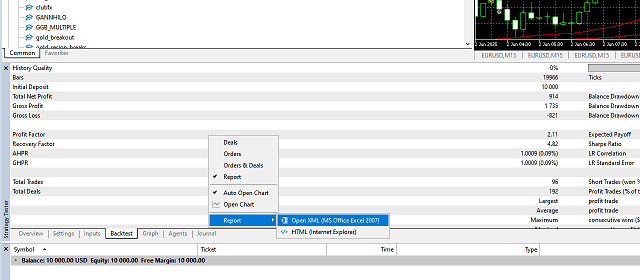
Export the MT5 backtest as XLSX
In MetaTrader Strategy Tester, right-click the backtest report and export it in the Open XML / Excel format. Can It Pass reads MT5 XLSX exports directly, so you can start from the real report instead of rebuilding trades by hand.
02
Open your workspace
Register once, then work from the same saved account every time. Your simulations, imported strategies, project history and optimizer runs stay attached to the workspace instead of living in throwaway spreadsheets.
03
Upload one or multiple MT5 reports
Click Add MT5 XLSX and import one file or several at once. The platform combines the selected reports into one portfolio research workspace so you can test how the basket behaves together, not just how each strategy looks in isolation.
04
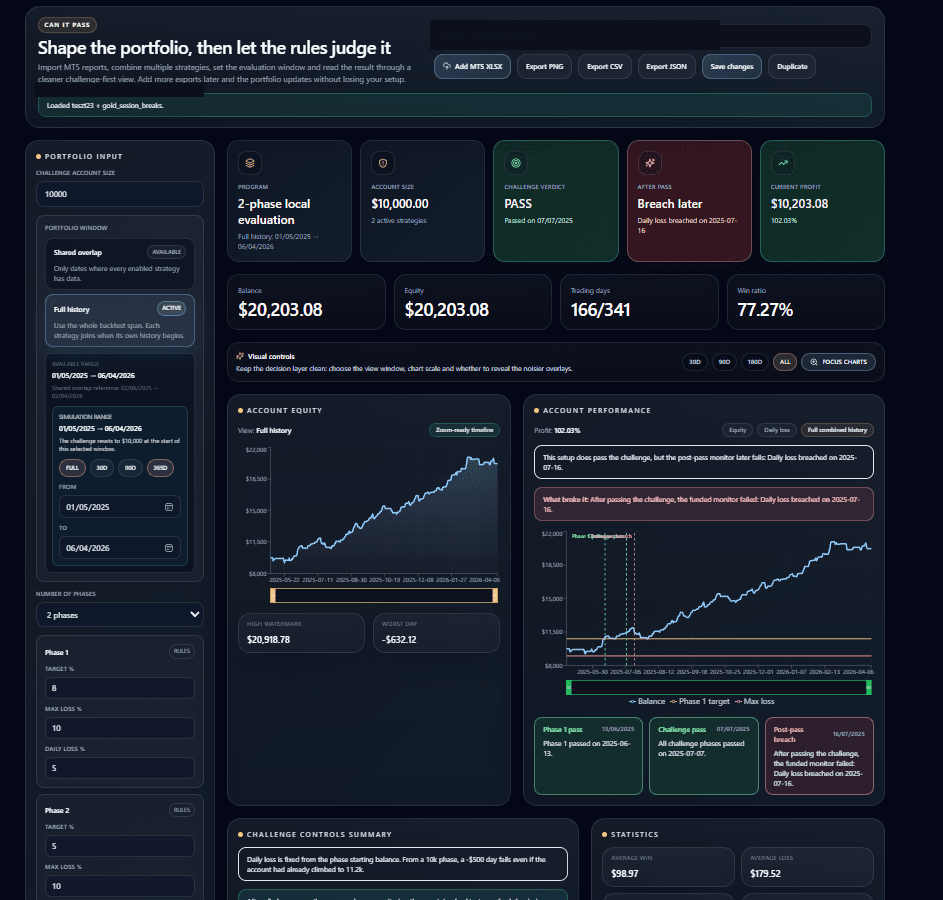
Choose the portfolio window
Use Full history when you want the widest possible view and are comfortable with each strategy joining the basket when its own backtest starts. Use Shared overlap when you want to evaluate only the dates where every enabled strategy has data at the same time.
05
Set the challenge rules you actually care about
Choose account size, number of phases, target percentages, max loss and daily loss. You can also narrow the simulation range if you want to test a specific market regime or a more recent deployment window.
06
Read the simulator verdict
The simulator gives you the challenge verdict, current profit, balance and equity curves, rule lines, statistics and strategy contribution in one cleaner decision layer. If the basket passes the challenge and later breaks in the funded monitor, the post-pass view makes that visible too.
07
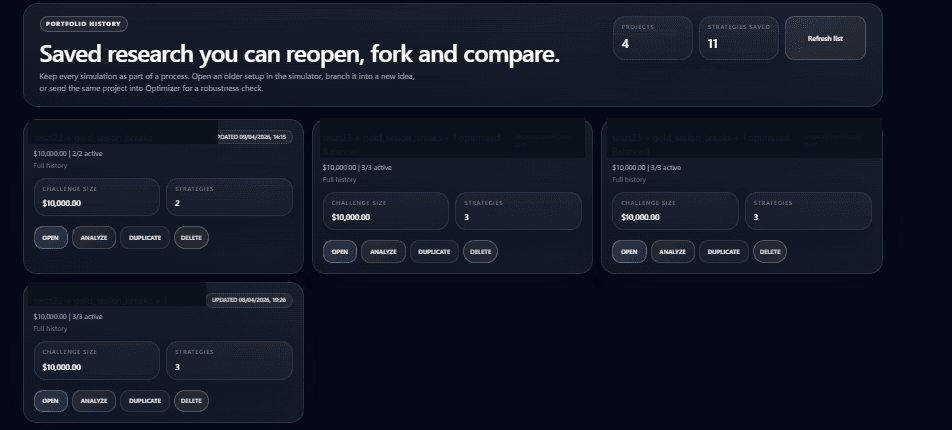
Save versions in History
Save the current setup before changing ranges, lots or rules. History lets you reopen older versions, duplicate them into a new branch and compare ideas without losing the earlier research trail.
08
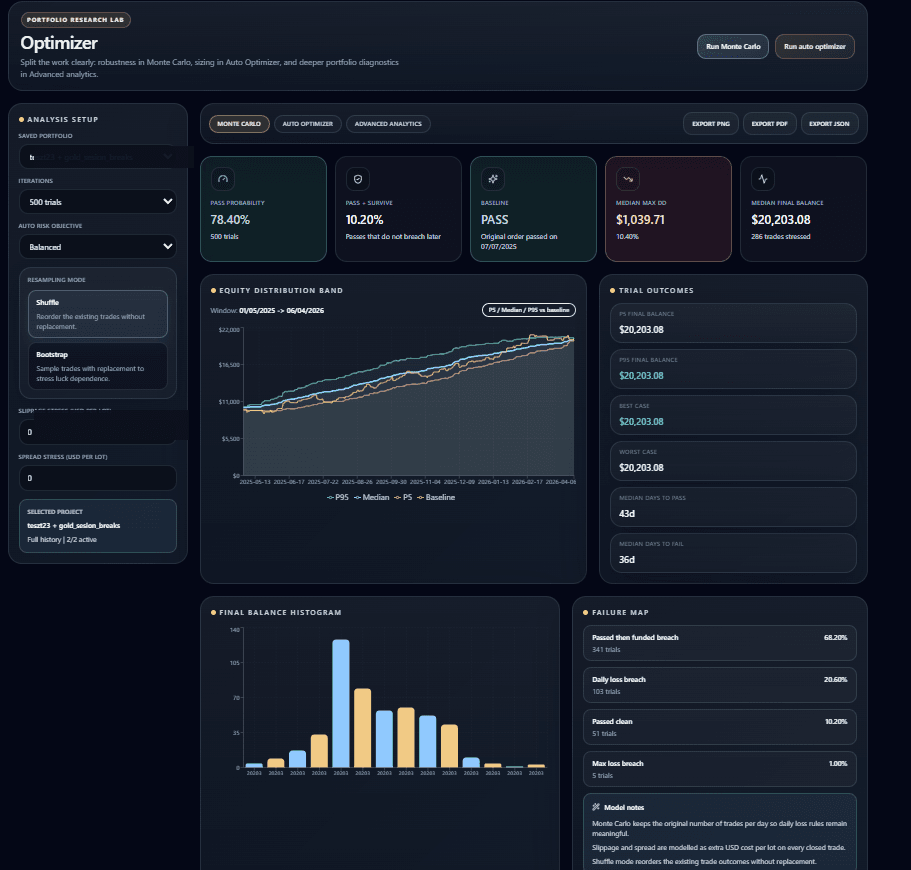
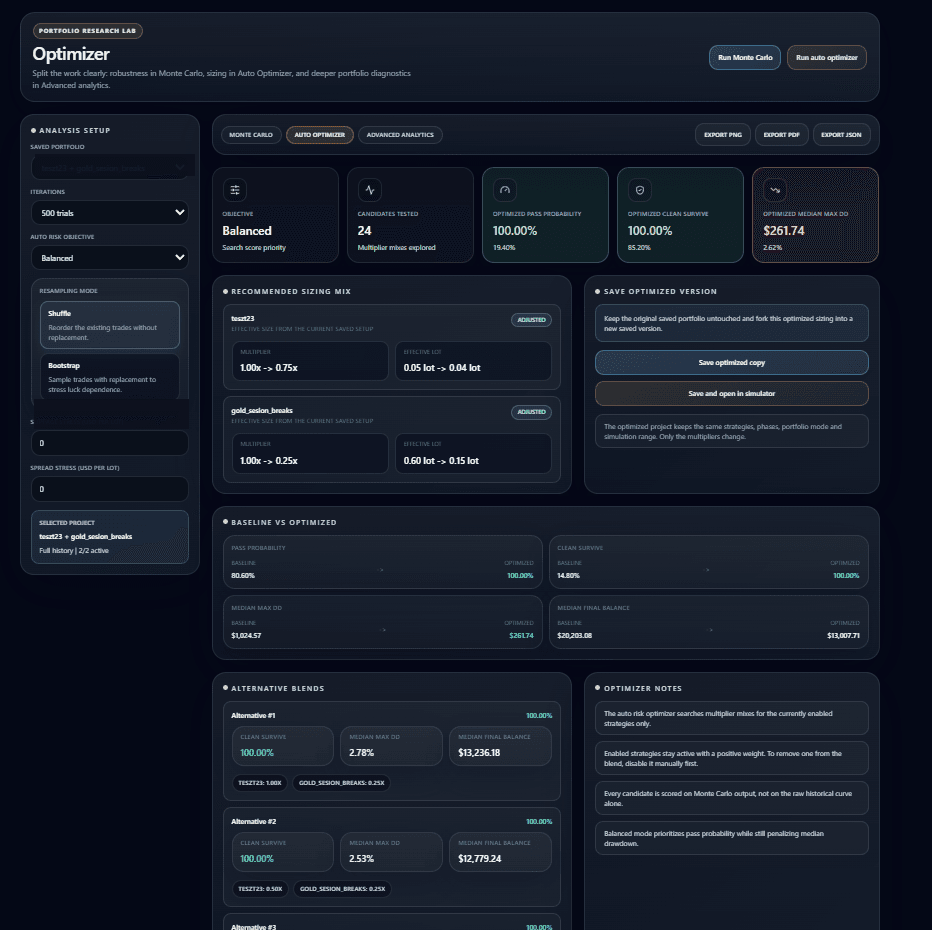
Stress the same setup in Optimizer
Open Optimizer to run Monte Carlo, test sizing mixes in Auto Optimizer and inspect deeper diagnostics in Advanced Analytics. This is where one historical equity curve turns into a probability view, a drawdown distribution and a more honest robustness read.